Compare versions & collect approvals
Show two cuts side-by-side with synced playback, keep every note pinned to its own version, and get a clean approved/rejected stamp.
Updated
The revision loop only really ends one way: a yes. But before the yes, you often need to put two cuts in front of a client and let them see the difference for themselves. HoldFast does both. Reviewers get a version rail to switch between cuts and lay two side by side, and each cut collects its own approval, so "looks good" becomes a decision the link actually records.
Two switches decide what a reviewer sees
Every file you upload onto an asset becomes a version, labelled by its filename. There are no invented V1 / V2 numbers: the name in your editing app is the name here, and the name your client references in feedback. Two switches govern each version:
- Active: the version that plays everywhere the link is shared. Exactly one is active at a time.
- Visible to reviewers: whether a reviewer can find that version in the rail. This is off by default for everything.
So a quiet re-render can go live without ever appearing in a client's list, and a cut you want compared shows up only when you deliberately mark it visible.
Publish a cut to compare against
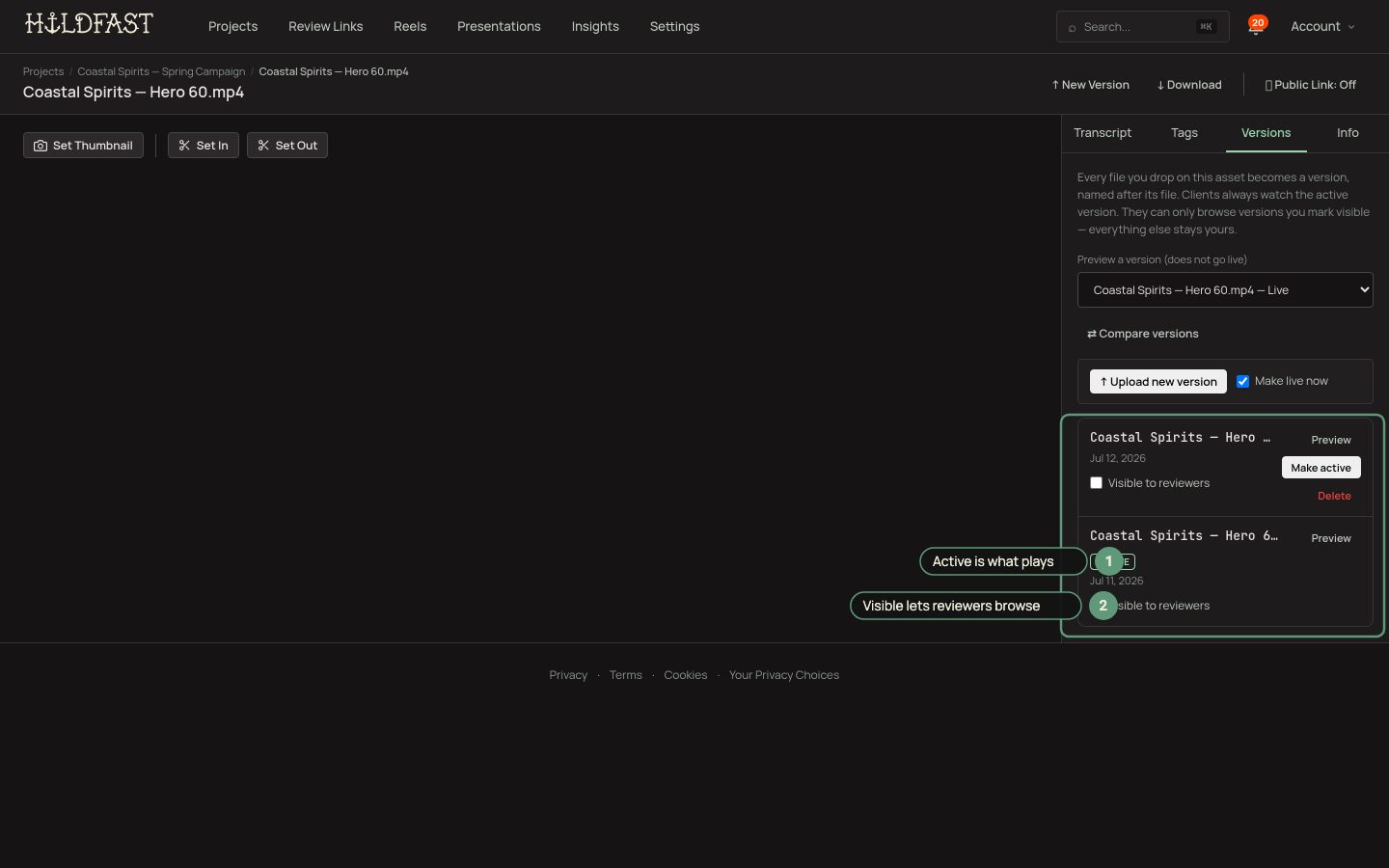
Two switches: active (what plays) and visible (what reviewers may browse).
Upload your new cut, then open Version History and tick Visible to reviewers on it. The first time you do this on an asset, HoldFast offers to also show the previous cut, so there's actually something to compare against. Say yes.
Then, on the review link itself, turn on Show versions. The rail only appears once the link has Show versions on and at least one asset has a visible version, so nothing leaks the instant you flip a single switch.
The reviewer's rail and Compare
Your reviewer now sees a rail listing your visible versions by filename, with the active one marked. One click swaps the player to that version, its media and its own comments. Hit Compare and two versions sit side by side with linked playback: play or pause on either side moves both, while each side scrubs independently. That lets a reviewer line the two cuts up on the same beat and roll them together.
Notes stay pinned to their version
This is what keeps a comparison honest. Every comment and approval is stamped with the version it was made on and carries a small badge (for example, on BreweryFilm_1.mp4). A note left on an earlier cut stays on that cut. It never smears onto the newer file. Switch versions in the rail and you read that version's feedback.
Collect the approval
Each visible version collects its own approved or rejected stamp. So "the hero is approved, the cutdown still needs work" is a state the link records, not something buried three replies deep in a thread. When the yes lands, it's pinned to the exact cut it belongs to.
Next steps
- Go deeper on the notes themselves: Timecoded comments & annotations.
- New to review links? Start with How to send a video for review.
Ready to try it?
Host video, collect frame-accurate review, and see who's watching. Free to start.
Start free