Comment from the transcript & export captions
Use the transcript as a timeline: select a line to comment or mark it up, then export PDF, TXT, or VTT captions.
Updated
A transcript in HoldFast isn't a document you file away and forget. It's a timeline you can act on. Once a cut has been transcribed, the words sit right beside the video, and every line is a live handle: click it to jump, select it to leave a note, or hand the whole thing off as captions. Here's how to turn spoken words into feedback, and feedback into deliverables.
The Comments / Transcript toggle
Open a video for review and the panel beside the player carries a [Comments | Transcript] toggle. Comments is the running list of timecoded notes. Transcript is the same conversation seen through the words: every spoken line in order, with the notes people have left interleaved at the exact moment they belong. Switching between the two is a change of view, not a change of place, so the video stays put and the note composer below stays shared.
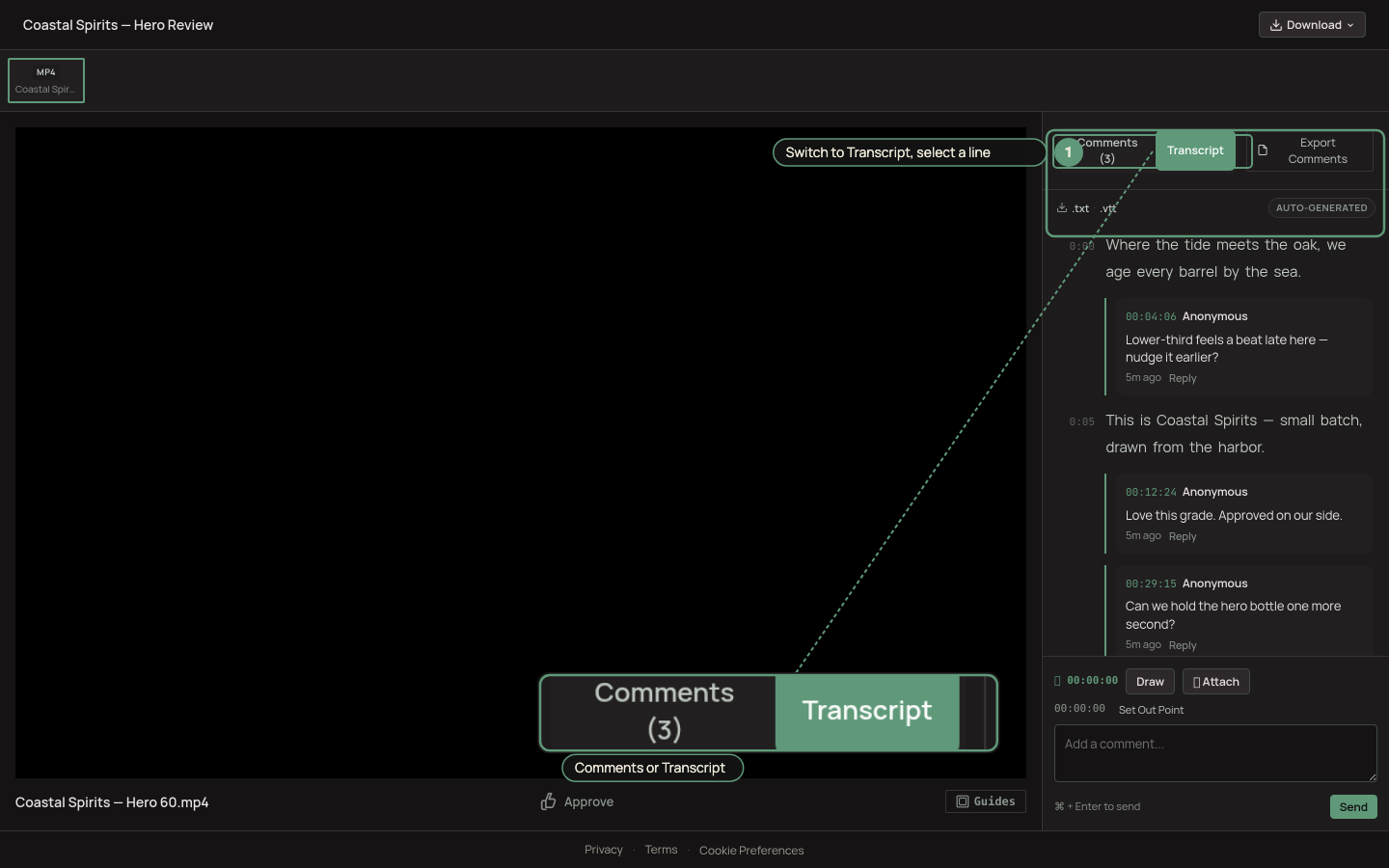
A [Comments | Transcript] toggle; select text to comment or mark up.
If the video hasn't been transcribed yet, generate it first in one click: see How to transcribe a video.
Select a line to comment or mark it up
This is where the transcript earns its keep. Highlight any line or phrase and a small action bar appears with two choices:
- Comment: start a timecoded note pinned to the first word you selected. No scrubbing to find the moment. The words are the moment.
- Markup: move the player to that timecode so you can draw straight on the frame.
Because the note carries the exact in-point, "the line about the warranty" stops being a hunt and becomes a click. It's the fastest way to turn a script read or a VO pass into precise, frame-accurate feedback.
Click any line to jump
Reading and watching stay in sync. Click a line and the player moves to that timecode; as the video plays, the transcript scrolls along and highlights the word being spoken. That makes the transcript a second way to navigate the whole cut, usually quicker than the scrubber for anything dialogue-heavy.
Export captions and notes
When it's time to hand work off, the transcript comes out in the formats you actually need:
.vtt: WebVTT captions, the standard format your editor, player, or delivery platform reads. Drop them straight onto a timeline or ship them with the file..txt: the timecoded transcript as plain text, one line per phrase, for scripts, show notes, or a paste into anything.- PDF: the round of review notes as a clean, timecoded document you can send to a client or keep with the project.
That closes the loop: transcribe once, review straight from the words, and walk away with captions ready to ship.
For the drawing and threading side of review, see Timecoded comments & annotations. To make the transcript in the first place, start with How to transcribe a video.
Ready to try it?
Host video, collect frame-accurate review, and see who's watching. Free to start.
Start free